
How to Connect Shark Robot to Wi-Fi on SharkClean App
Want to connect your Shark robot vacuum to Wi-Fi using the SharkClean app? Don't worry, the setup is normally simple once your phone, router, and robot are ready.
Connecting the robot lets you start cleanings, send it back to the dock, and use app features for your model. Here we will cover how to set it up without getting stuck at the Wi-Fi screen.
Set Up Your Shark Robot in the SharkClean App
To connect a Shark robot to Wi-Fi on the SharkClean app, download the app, connect your phone to a 2.4 GHz Wi-Fi network, add your robot in the app, then follow the on-screen steps to put the robot into setup mode and enter your Wi-Fi password.
Keep the robot on its charging dock while you do this. Shark robot models can have different buttons and lights, so follow the setup prompt for your exact model instead of pressing buttons at random.
Check Your Shark Robot Model Family
This SharkClean app setup can help with compatible smart Shark robot models, including Shark IQ Robot, Shark ION Robot, Shark AI Robot and AI Ultra, Shark Matrix and Matrix Plus, and Shark POWERDETECT Robot models.
However, the app screens, Wi-Fi light, and button used for setup can be different between these robot families. Check the model number on the bottom of your robot and follow the SharkClean prompt for that model.
- Shark IQ Robot
- Shark ION Robot
- Shark AI Robot and AI Ultra
- Shark Matrix and Matrix Plus Robot
- Shark POWERDETECT Robot
Download or Update the SharkClean App
First, install the SharkClean app on your phone if you do not already have it. If you have the app, check for an update before adding the robot.
Open the app and sign in or create an account. Some app screens looks a little different depending on your phone and Shark robot model, but choose the option to add a new robot or device.
Connect Your Phone to 2.4 GHz Wi-Fi
Before starting robot setup, open your phone Wi-Fi settings. Your phone needs to be connected to a 2.4 GHz network for Shark robot app setup on supported models.
Many home routers use both 2.4 GHz and 5 GHz. If they have separate names, choose the 2.4 GHz name. If your router shows only one name, you may need to check its settings or ask your internet provider for help.
Put the Shark Robot Into Setup Mode
Place the robot properly on its powered charging dock, then follow the SharkClean app prompt for your model. If your robot has a Wi-Fi indicator, a flashing white light can mean it is ready for setup on some models.
Do not move the robot or dock while the app and robot is connecting. Keep your phone close by until setup is complete.
Follow the App Connection Steps
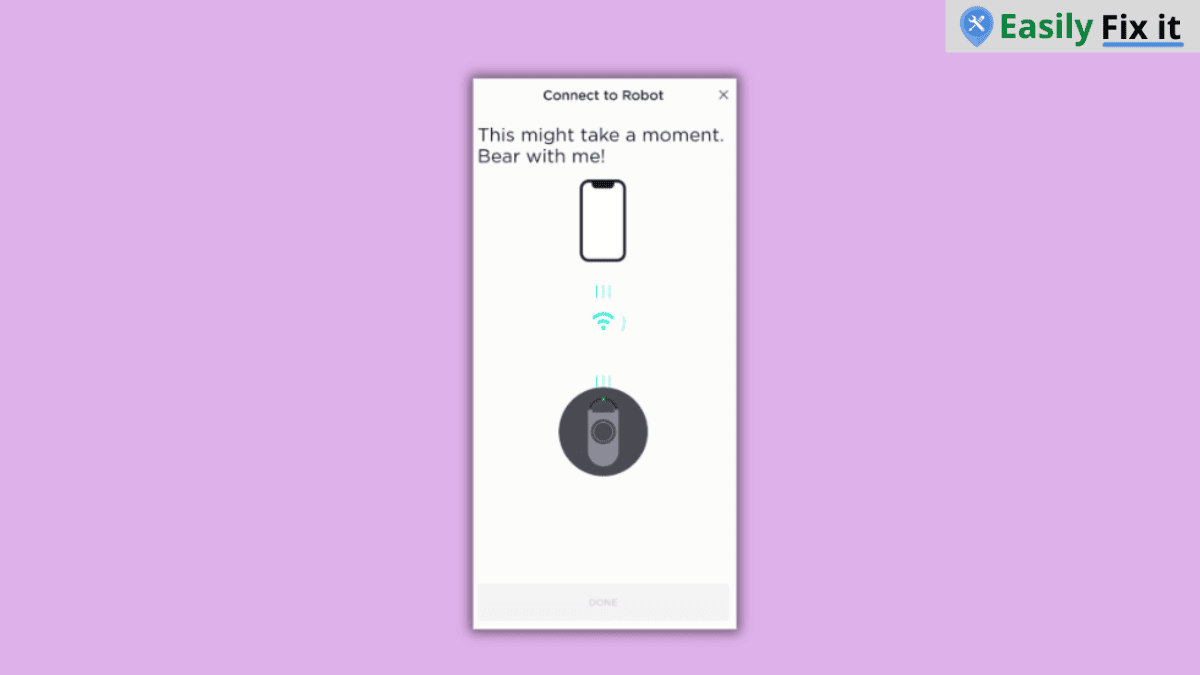
Once the app finds your robot, select your 2.4 GHz home network and enter the password carefully. It can takes a few minutes for the robot to join Wi-Fi and show as connected in the app.
Use these steps in order:
- Open SharkClean and choose to add a robot
- Select your Shark robot model when the app asks
- Keep your phone on the 2.4 GHz Wi-Fi network
- Follow the prompt to put the robot into setup mode
- Enter your Wi-Fi password and wait for the connection message
Check the Wi-Fi Indicator and Test the App
After setup, look for the connected message in the SharkClean app. On models with a Wi-Fi indicator, a solid white light can show that the robot is connected.
Try sending the robot to the dock or starting a short clean from the app. This confirms the app and robot are communicating properly.
What to Do If Setup Will Not Finish
If the app cannot find the robot or the Wi-Fi step fails, turn off any VPN or proxy and check that Wi-Fi isolation is disabled on the router. Then restart the app and try the setup again near the router.
For more help, use our Shark robot Wi-Fi troubleshooting guide. If the robot is frozen during setup, you can also reset the Shark robot vacuum before trying once more.
Conclusion
Connecting a Shark robot vacuum to the SharkClean app is mainly about using the right Wi-Fi network and following the prompts for your model. If you change router or internet provider later, use the steps to change Wi-Fi on your Shark robot. Keep the robot on the dock, use 2.4 GHz Wi-Fi, and wait for the app to confirm the connection.
- Download or update the SharkClean app
- Connect your phone to 2.4 GHz Wi-Fi
- Keep the robot on its powered dock during setup
- Follow the app prompt for your exact model
- Check the Wi-Fi guide if the connection fails
Need More Help With Your Shark Vacuum?
Don't panic. Use our Shark vacuum troubleshooting tool to select the problem you are having. Answer a few easy questions and get the solution.
Use Our Shark Vacuum TroubleshooterWas this page helpful?
Thanks for your feedback!
Written by
Muhammad Ali is an Electrical Engineer and Appliance Repair Specialist from Canada, who has been helping people fix their appliances since 2020.